Learning environment for computer science lessons
CodeRoom learning environment
Learn to program without switching between tools
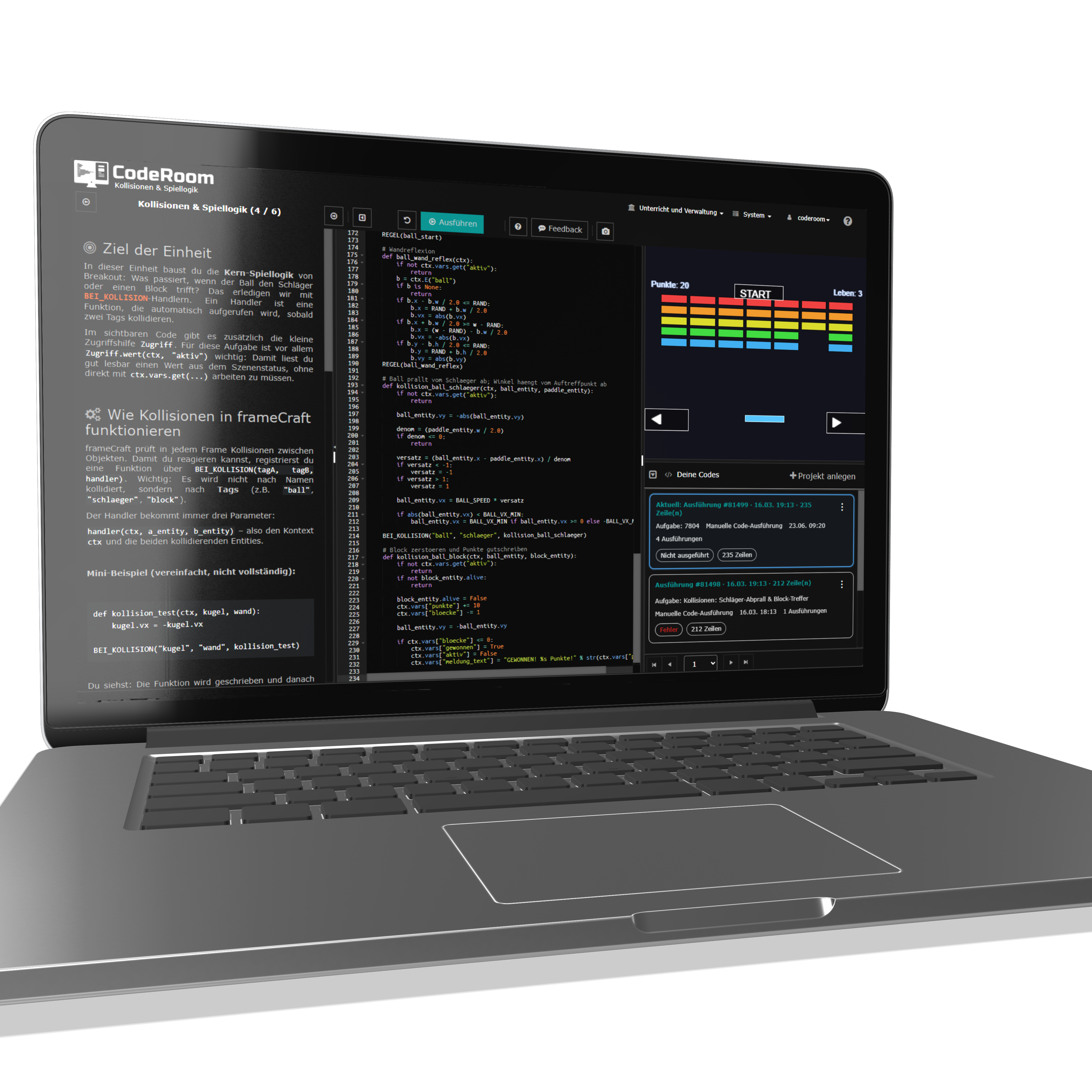
Guidance, code editor, and result display are located in CodeRoom on a single screen. This allows learners to apply content immediately, see results directly, and work concentratedly in class.
The central advantage
Knowledge acquisition and application on one screen
CodeRoom reduces the technical barrier to entry in computer science lessons. Learners see the task description, write code, and check the result directly in the same environment.
Guidance
Prepared content, explanations, images, code templates, and assignments are visible at a glance.
Code editor
Learners write programs in the browser with syntax highlighting, indentation, and helpful editor functions.
Output
Results appear immediately: text outputs, graphics, images, tables, or interactive representations.

Less distraction
Easy to understand and use
Since no additional programs, windows, or development environments are required, the focus remains on the actual task.
Students achieve faster initial success and do not have to familiarize themselves with complex tools first. This boosts motivation and self-reliance in the classroom.
Modern Editor
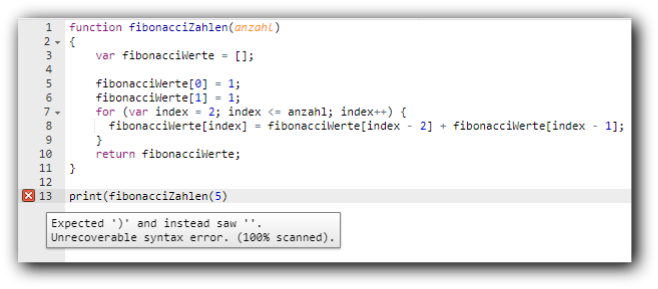
Comfortable code editor for teaching
CodeRoom uses a powerful editor with syntax highlighting, automatic indentation, code completion and error highlighting.
- Codes are stored and can be opened again
- Editor and guidance adapt to the selected color scheme
- Suitable for initial exercises and advanced programming tasks
User codes
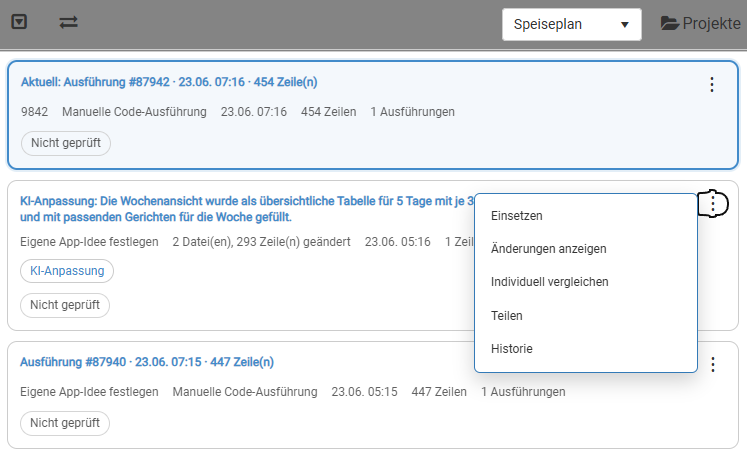
Stored code states are easily managed
User codes are now clearer sorted and easier to understand. Newer code states are at the top, so current work is directly visible.
- Display in the order of arrangement with newest codes on top
- Improved storage and more reliable loading and updating behavior
- Context menu for inserting, comparing, sharing, and history
Projects
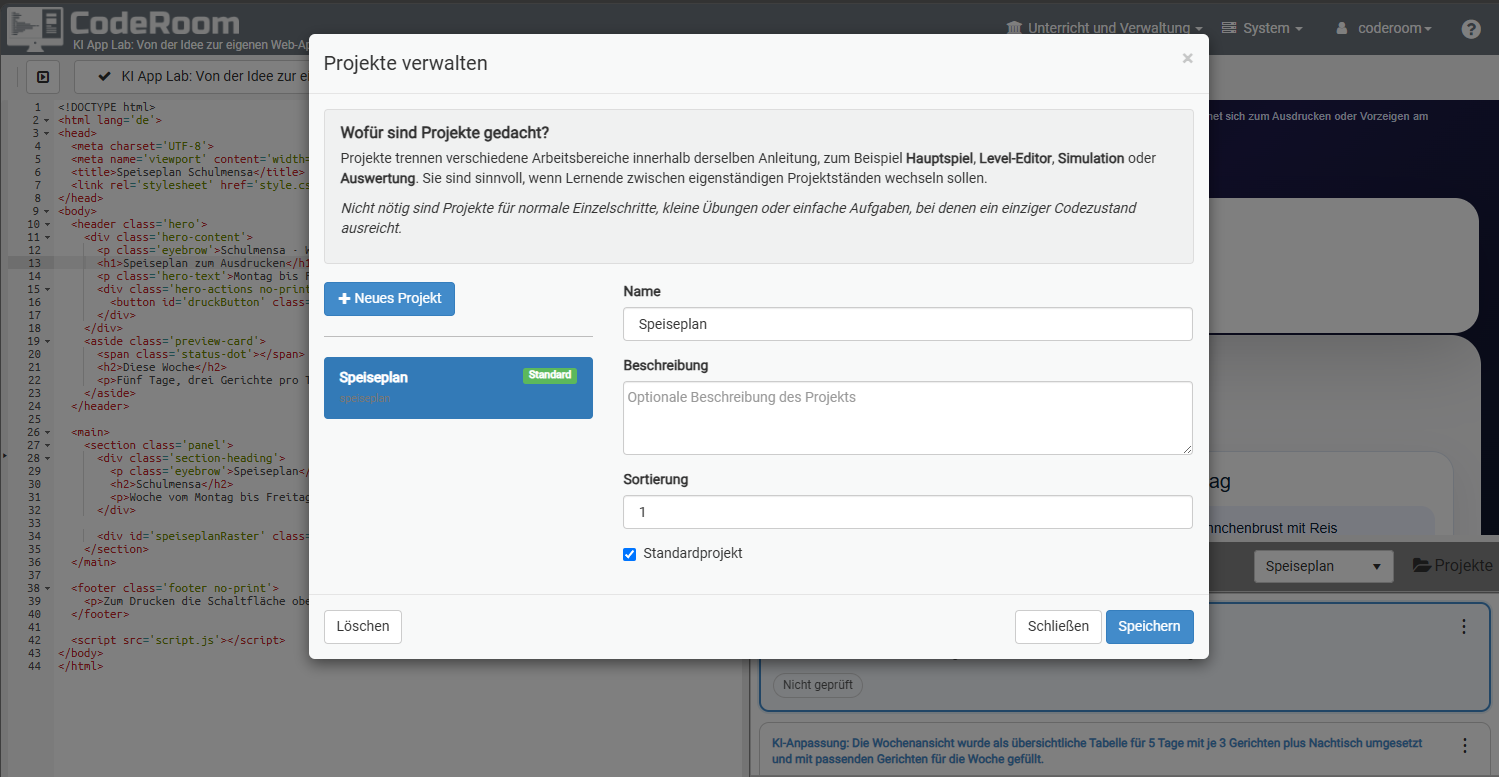
Codes within a content can be assigned to a topic
With projects, students can structure multiple code states or variants within a content.
This is especially helpful in collection contents, open practice phases and AI coding scenarios, where several small apps, variants or solution states are created.
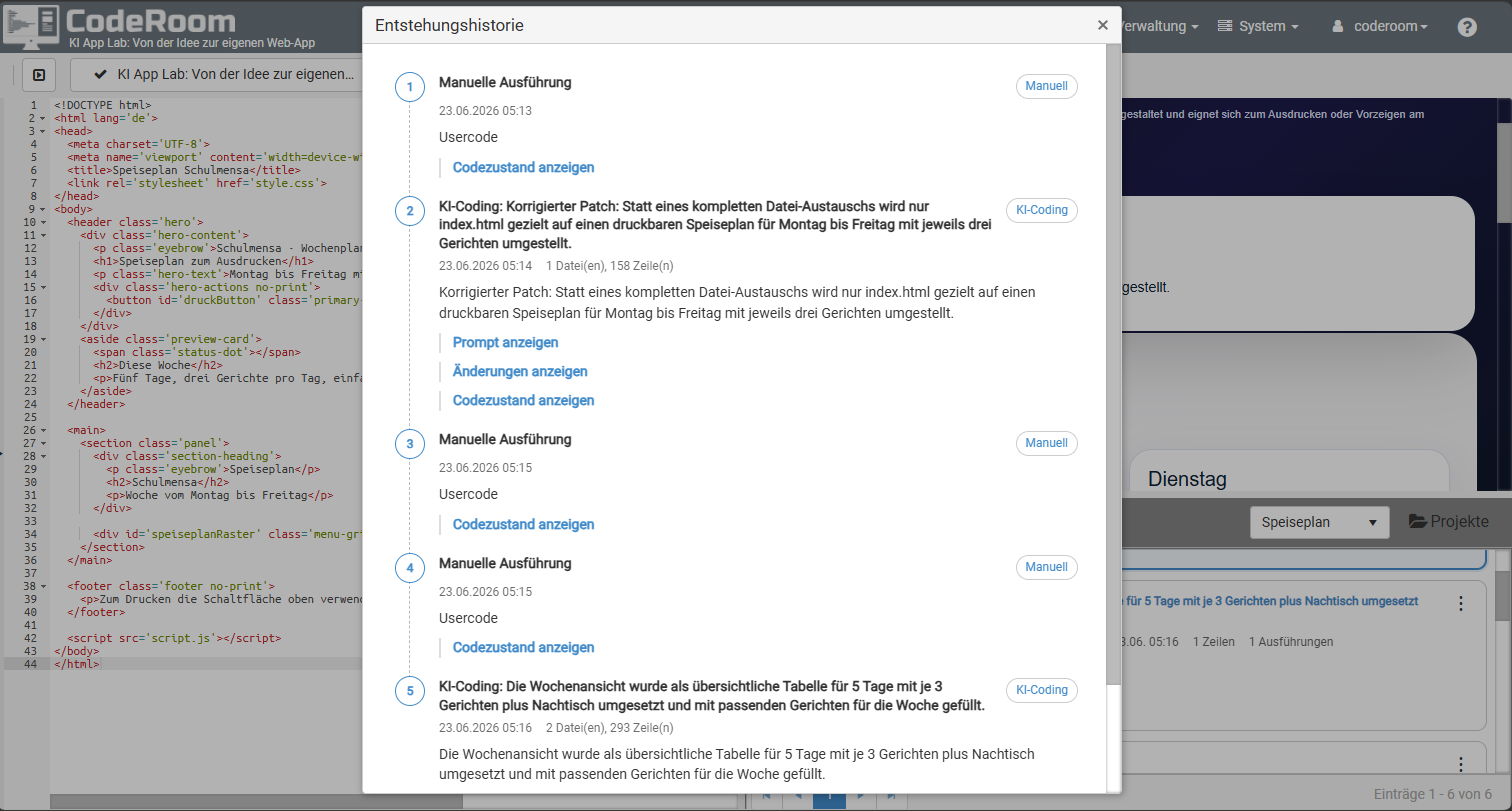
Creation history
Reproduction steps can be fully tracked
User codes have a history. This makes it visible how a code state came to be: through manual executions, KI-coding steps or later modifications.
Teachers and learners can display individual states, check prompts and track development steps over time.
Versions compare
Changes can be checked and adopted specifically
New comparison views make visible which files and code sections have changed between two versions. Changes can be checked against the predecessor version or any other version.
Predecessors compare
Direct check of what has changed compared to the last code state.
Individual comparison
Any versions can be compared with each other.
Changes are displayed
Changed files and inserted or removed code lines become visible.
Code is applied
An earlier or alternative state can be taken over into the editor again.
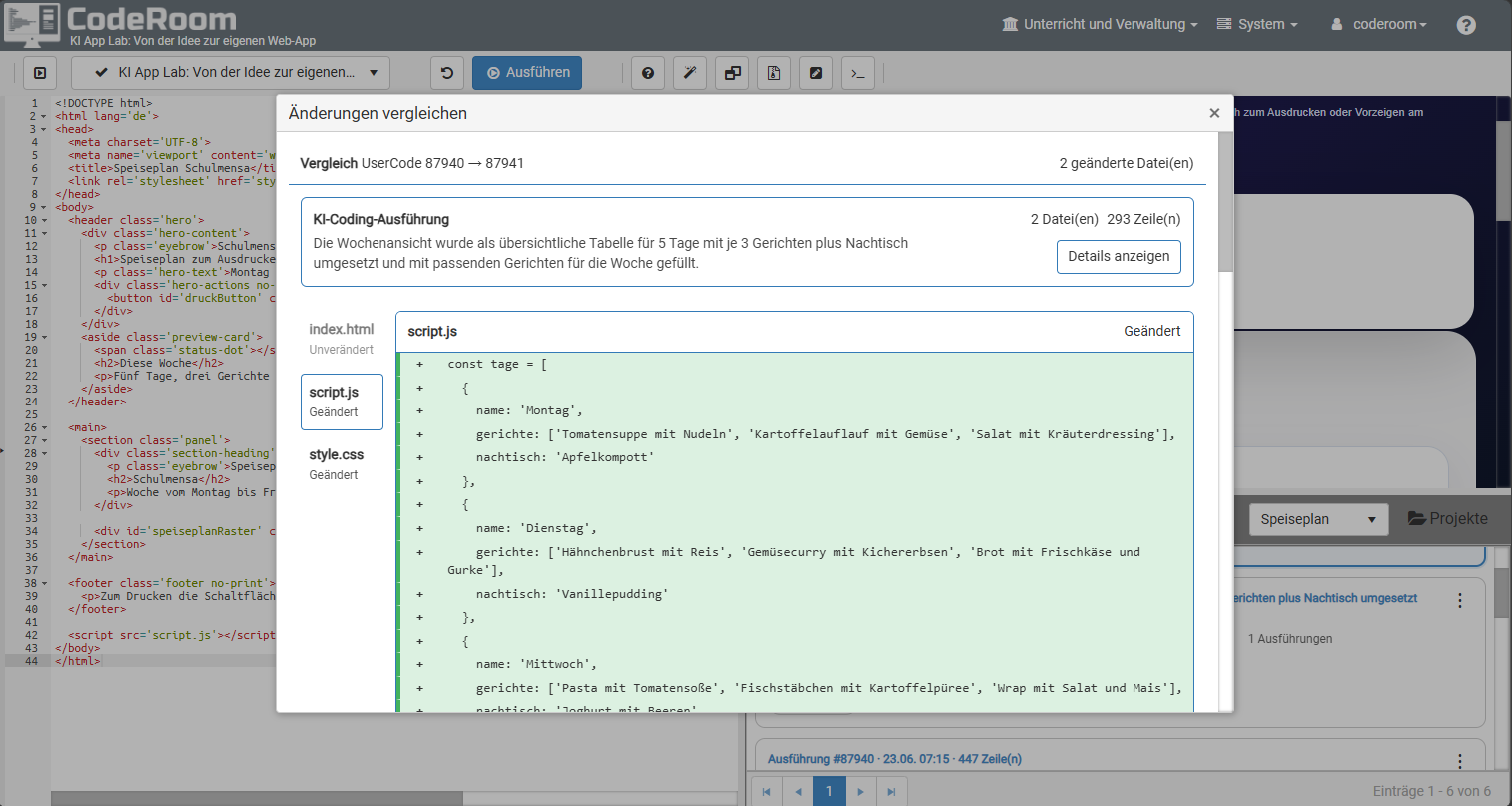
Transparency
Even AI changes remain verifiable
Just when it comes to AI coding, it's essential that changes don't appear as a black box. CodeRoom shows which files have been modified and what adjustments occurred in the code.
This way, learners can understand, adopt, reject or compare changes with an earlier state.
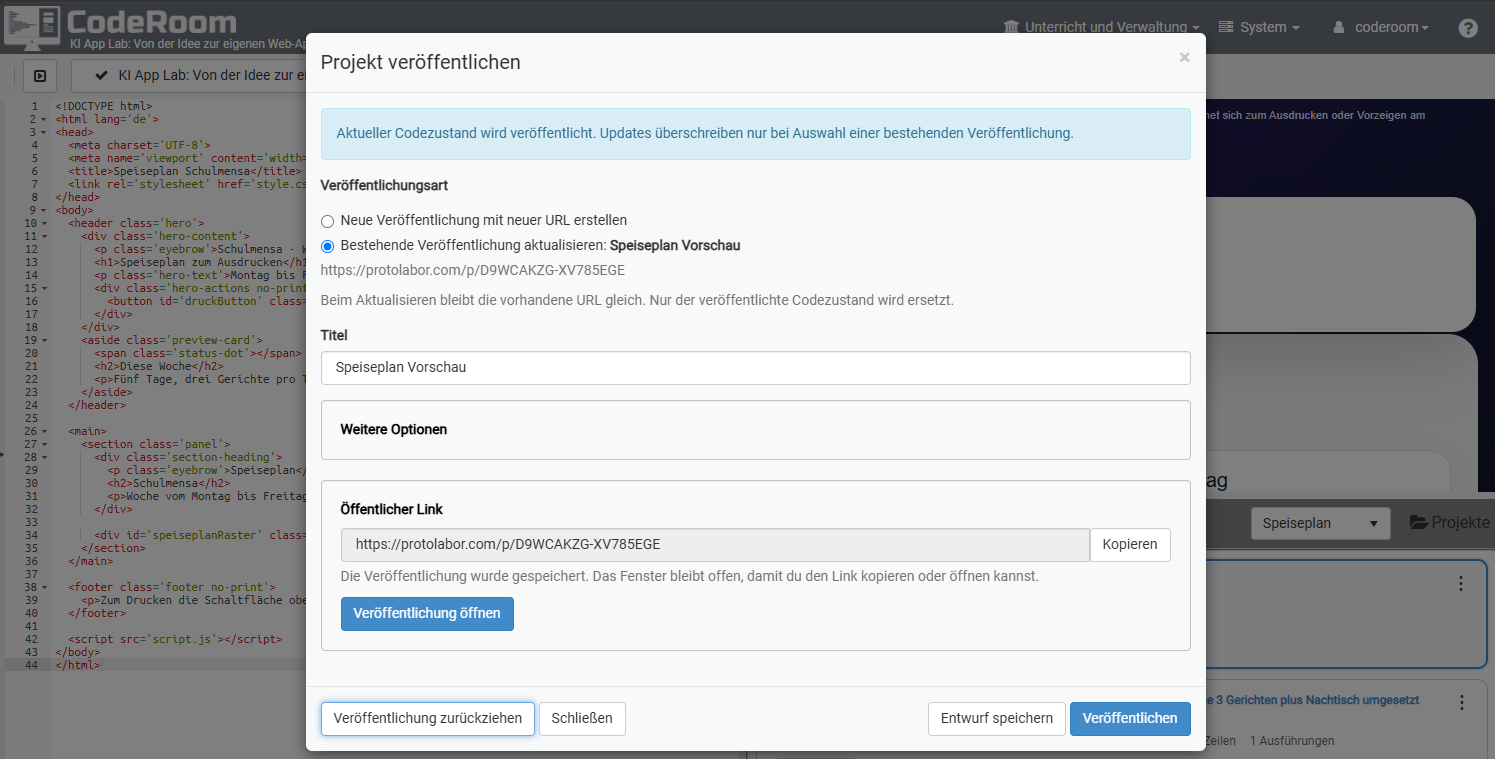
Share
Publish codes on protolabor.com
Learners can publish and share selected code states via a link. New publications can be created or existing ones updated.
- Public links for results, apps, or project stages
- Updating existing publications at the same URL
- Different publication statuses like public or private
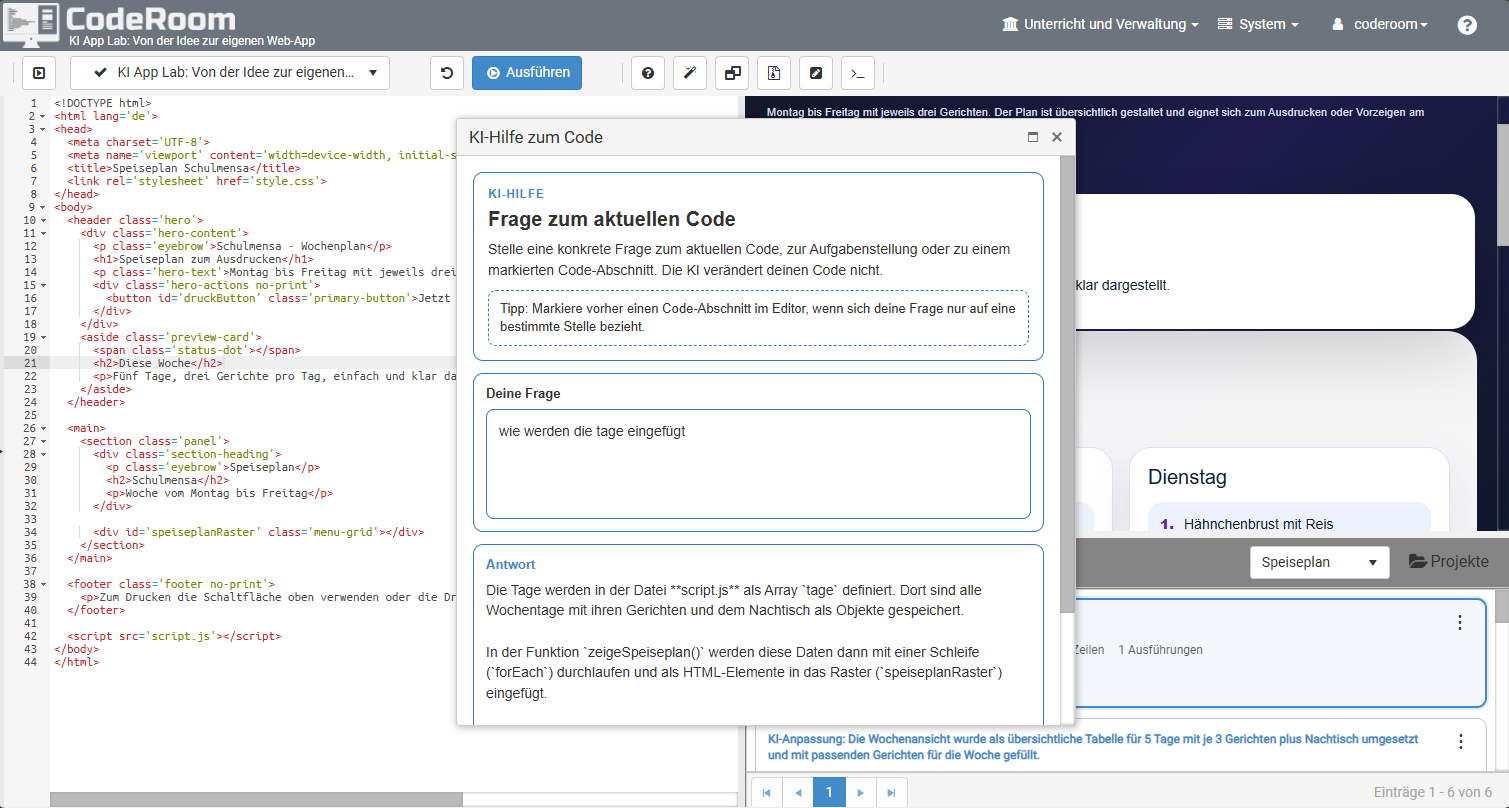
AI help
Asking questions about the current code
The AI help supports understanding the current code without automatically changing it. Learners can ask specific questions about a file, an error message or a marked section.
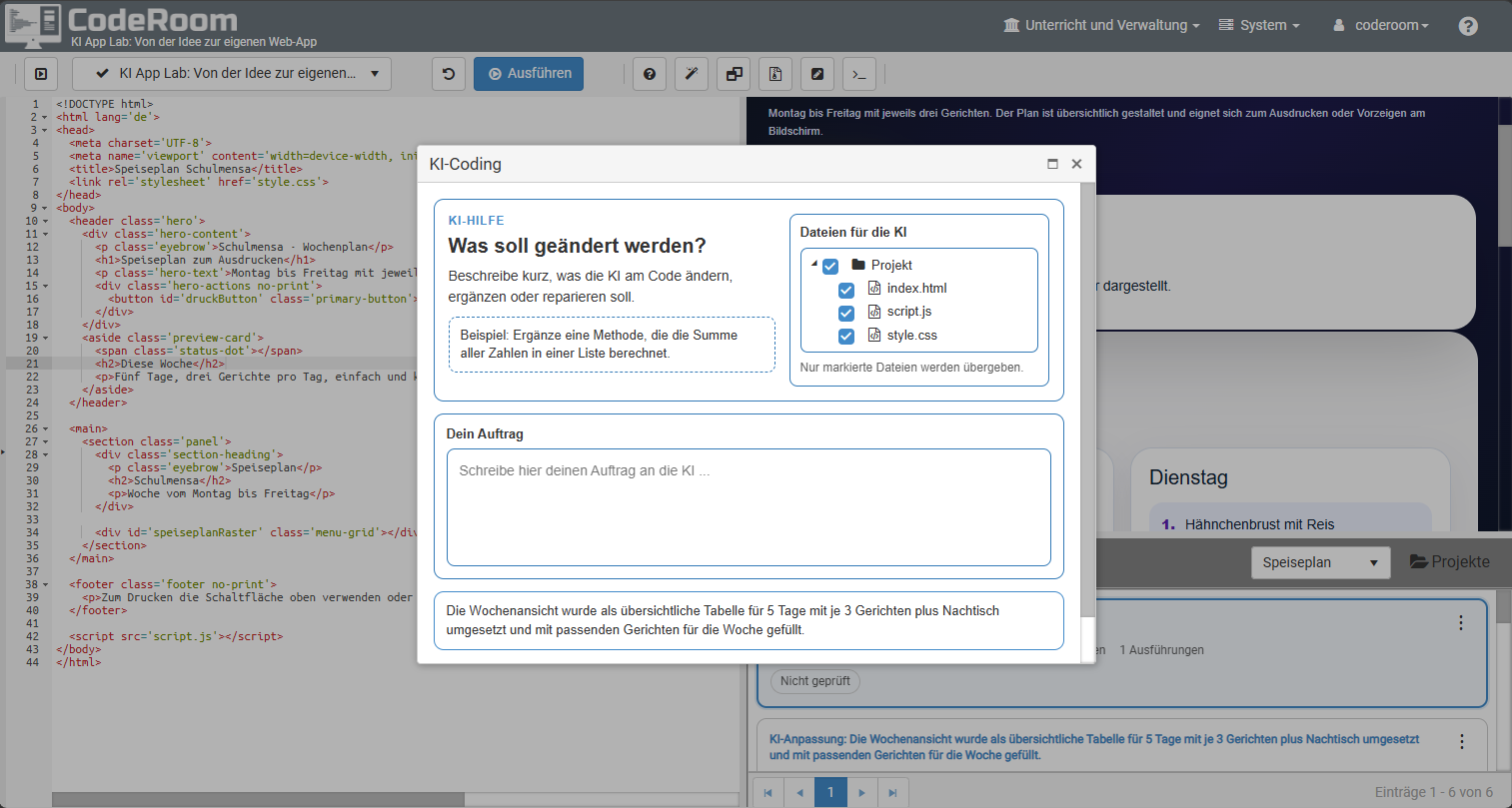
AI coding
Targeted code changes with project file selection
When using AI coding, it can be specified which files are passed to the AI. This way, adjustments remain more strongly limited to the current working context.
The changes made are stored, visible in the history, and can be compared afterwards.
Flexible Layouts
Views for different teaching situations
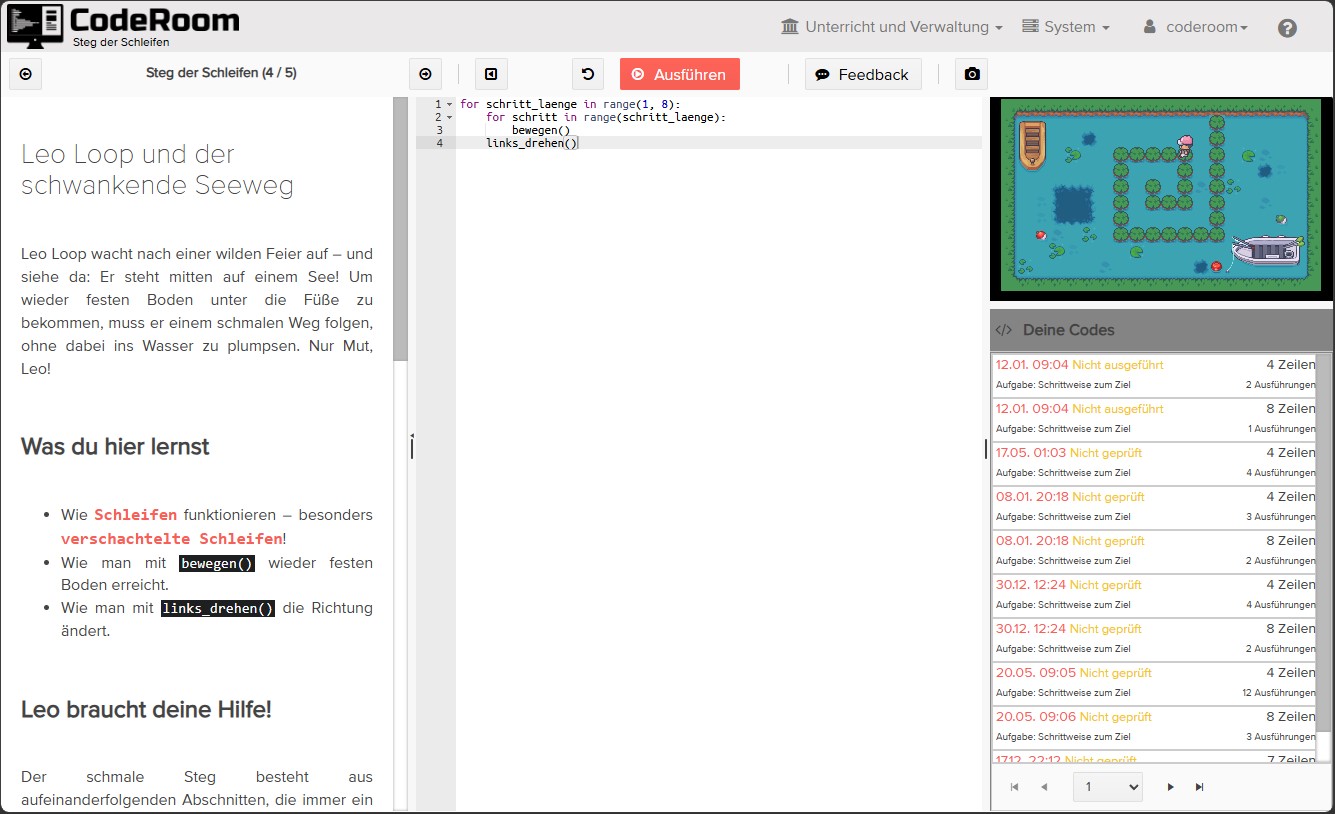
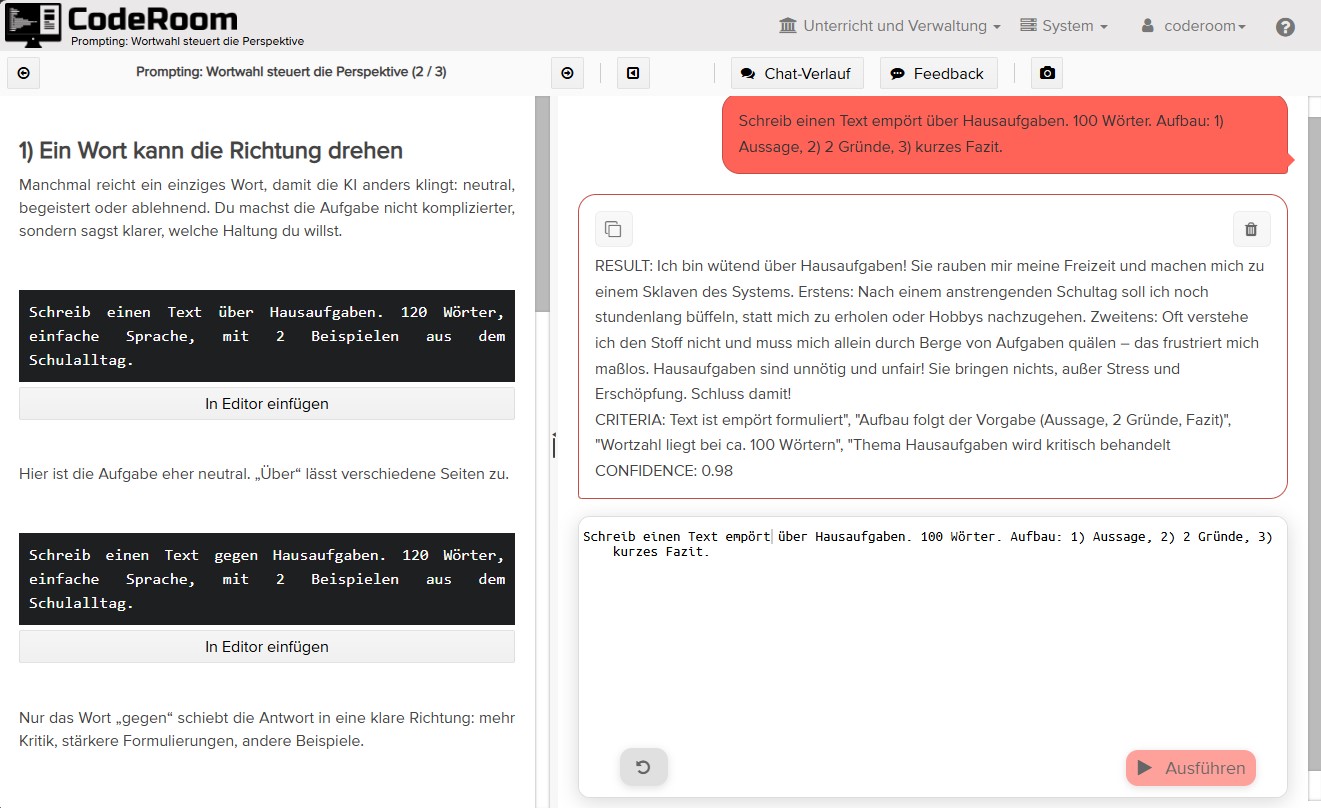
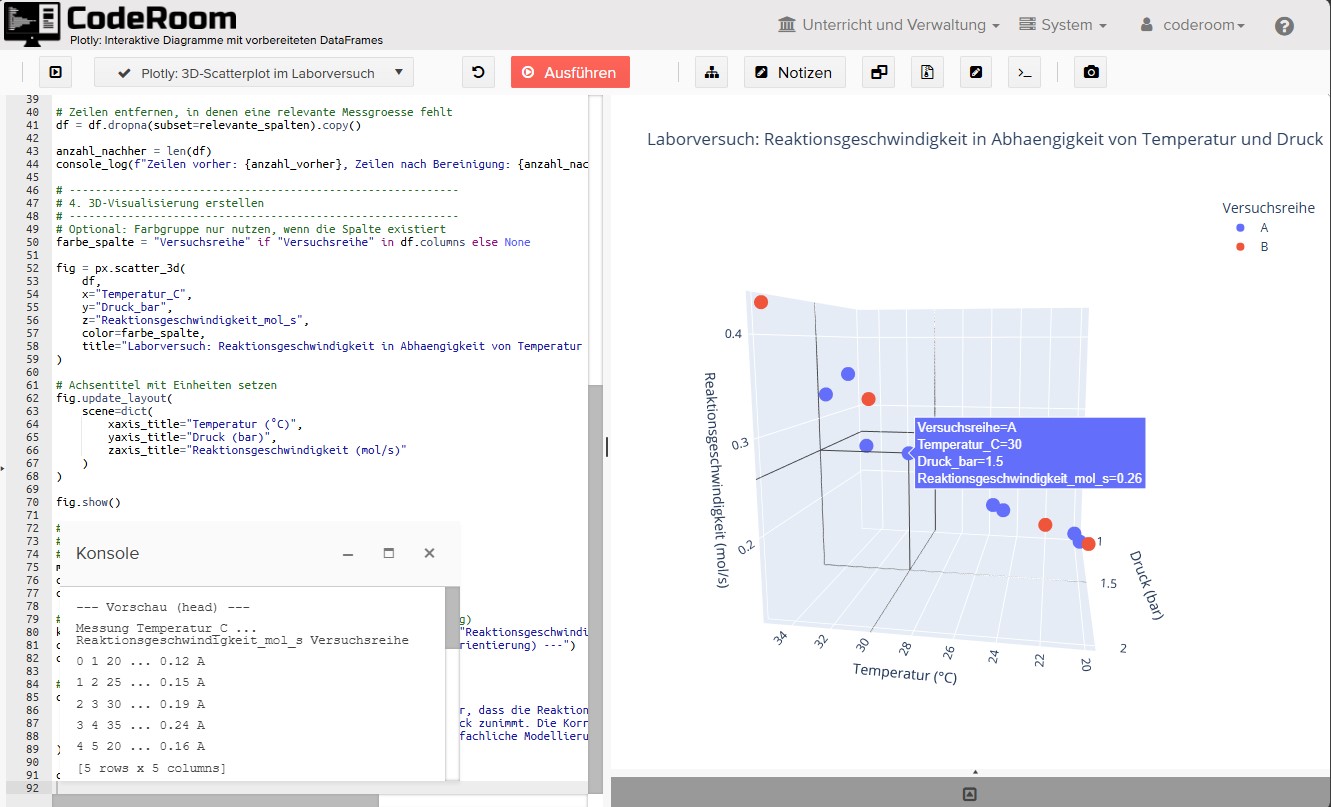
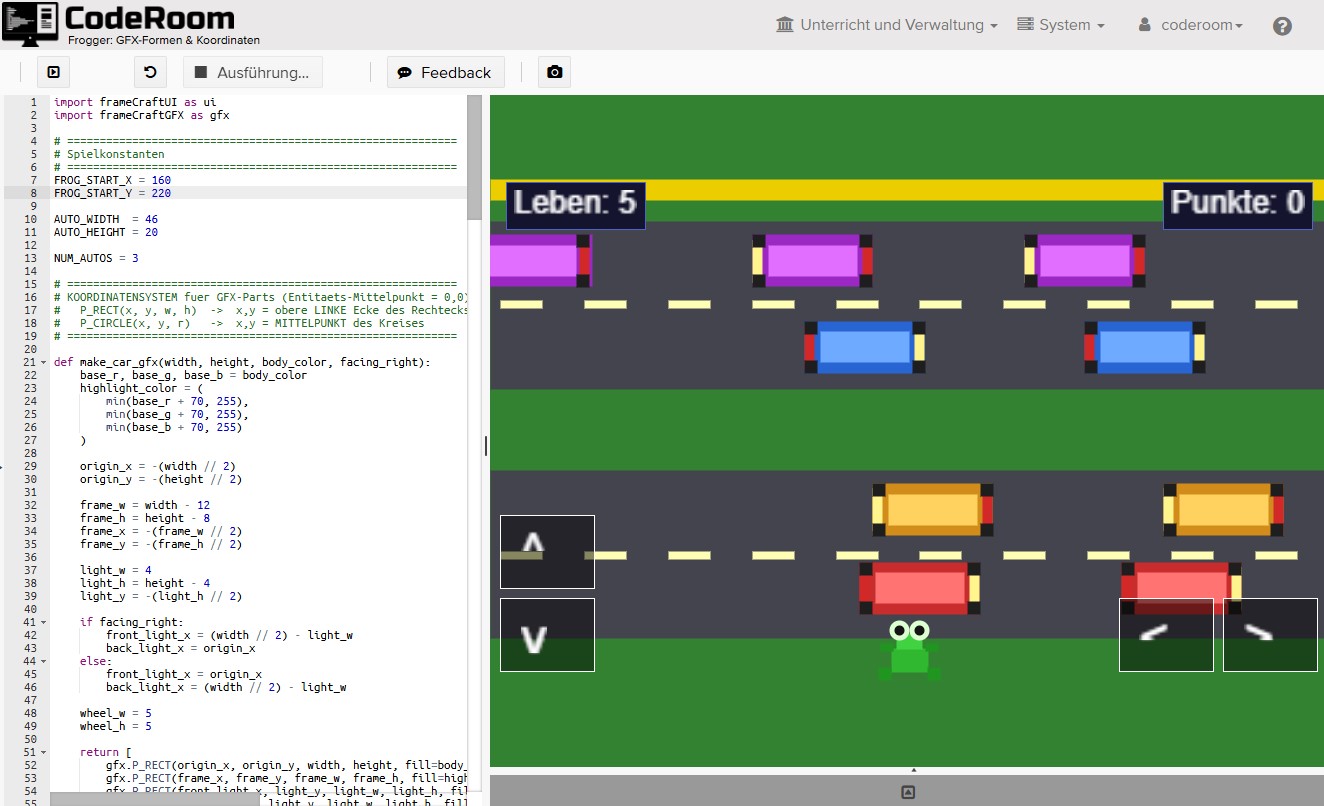
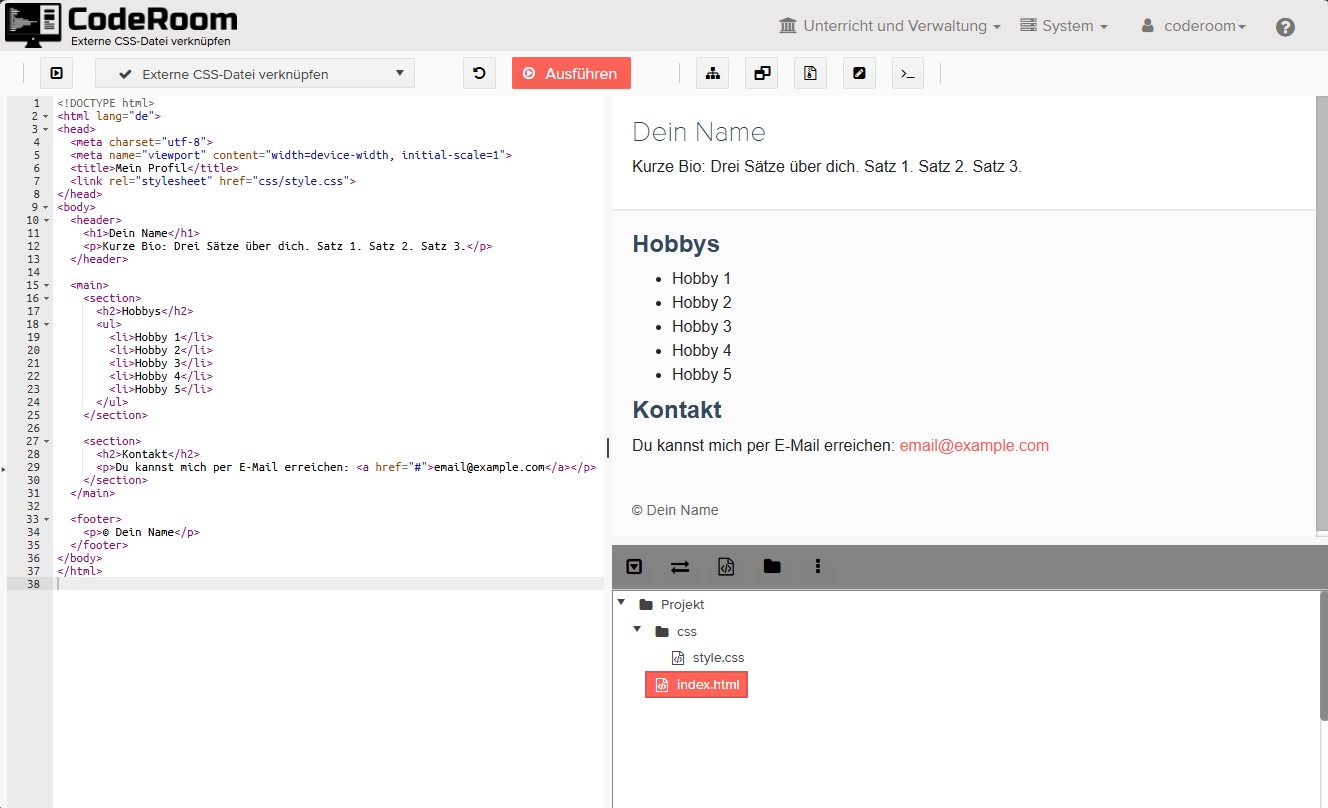
CodeRoom supports various views: from the classic three-column layout to focused working views.
Explain
Guidance and example code are in the center.
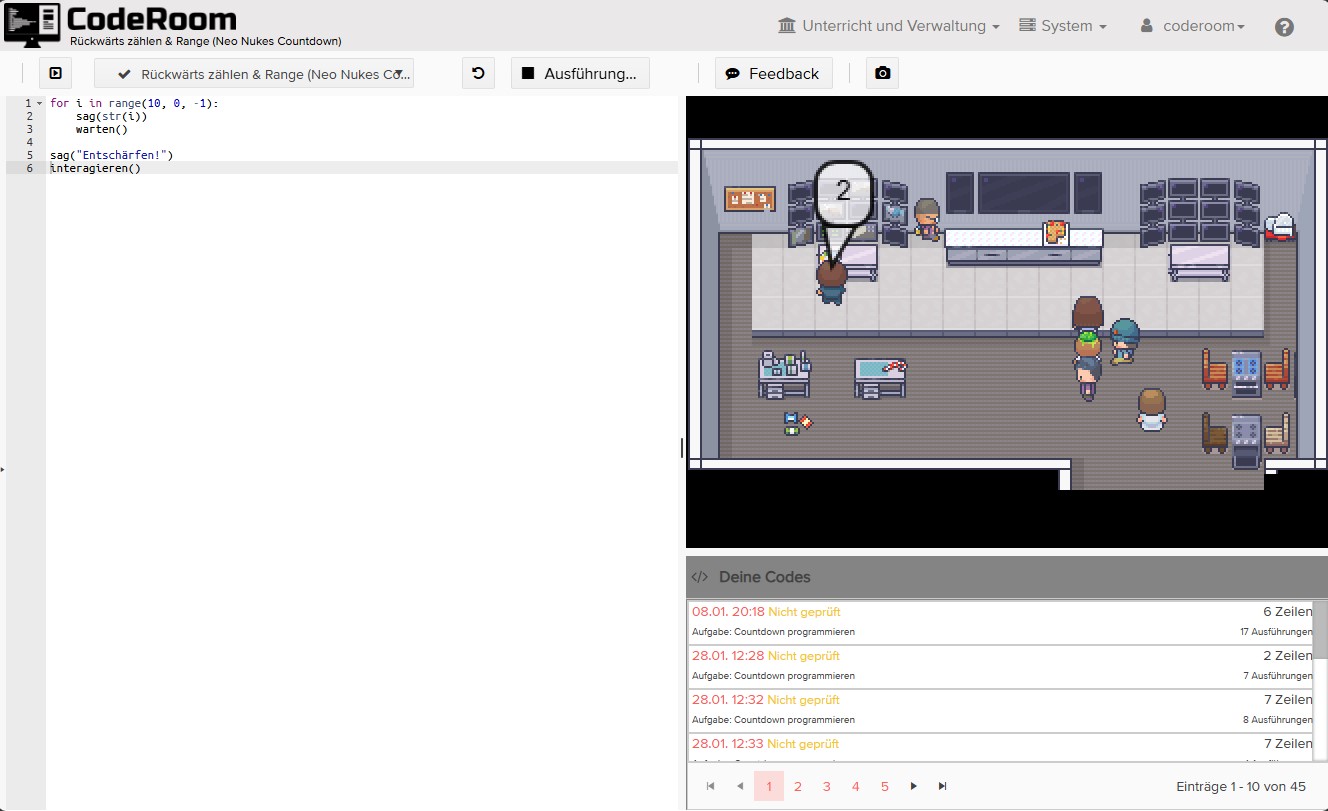
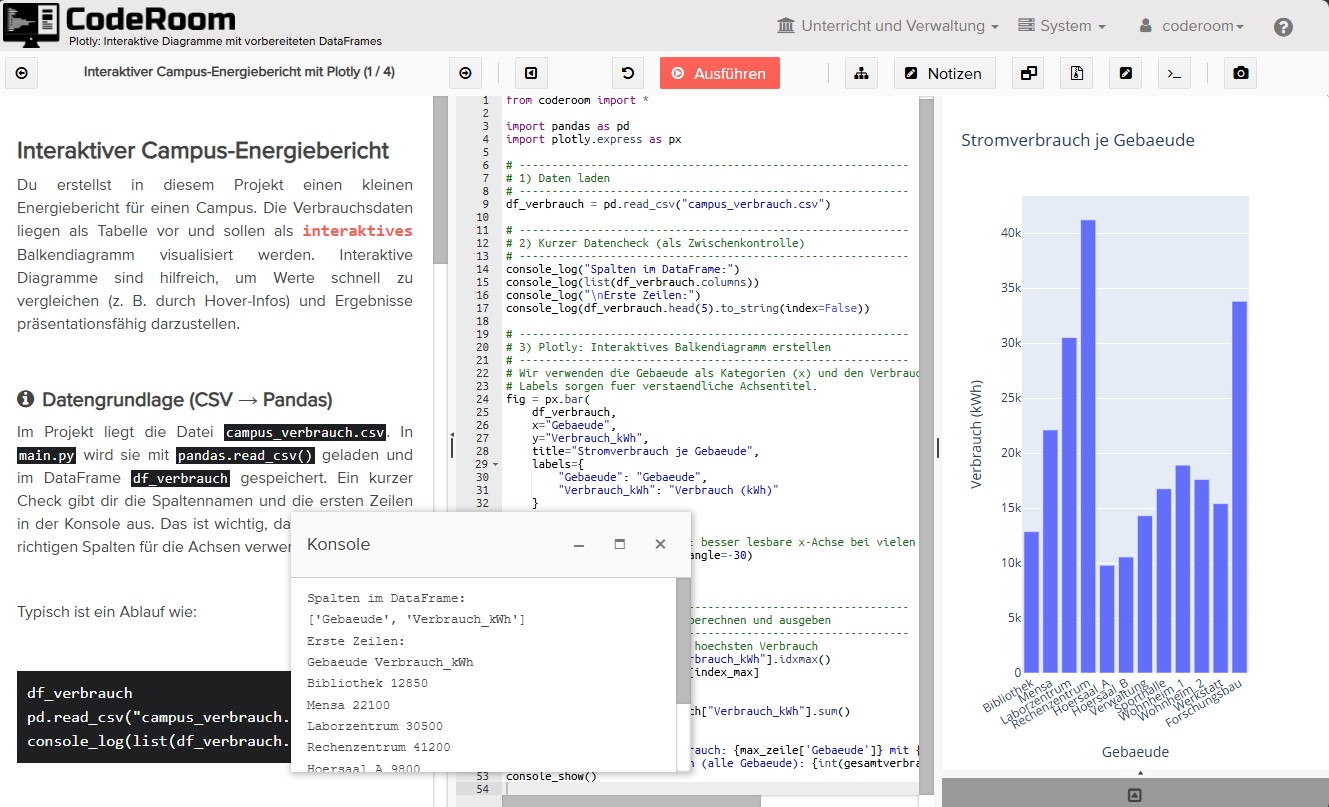
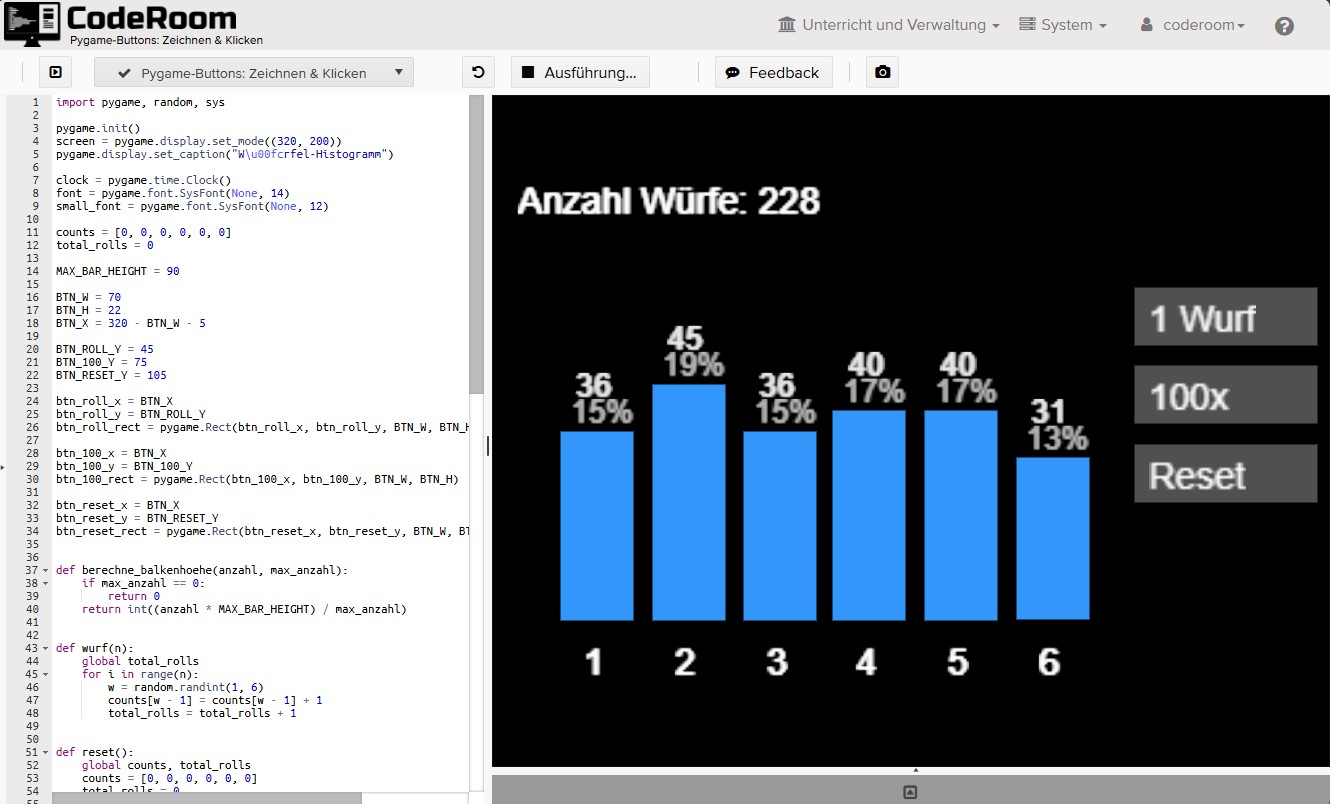
Practice
Editor, output, and feedback support independent work.
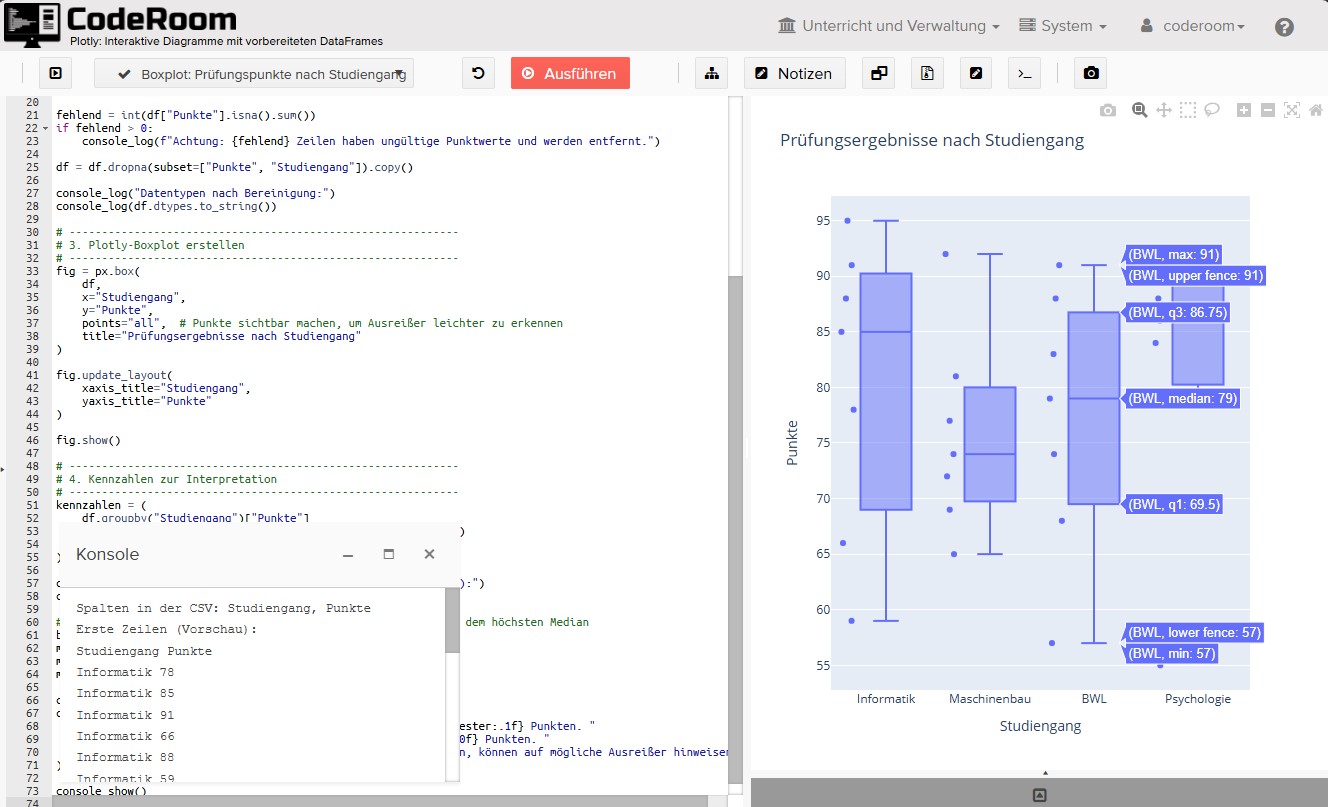
Present
Results, visualizations, or websites are more visible.
Project mode
Multi-file projects directly in the browser
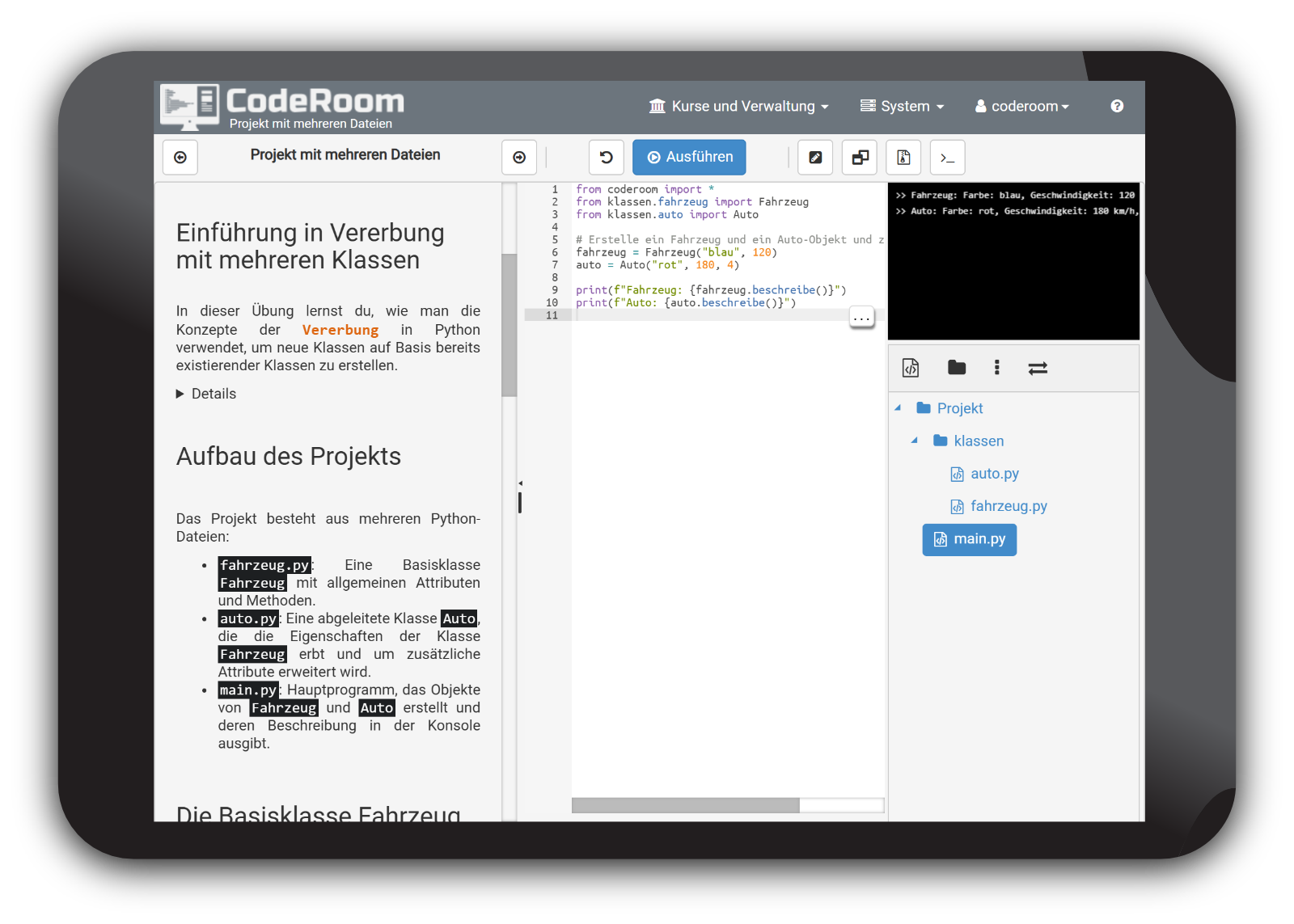
The project mode allows more extensive programming projects with multiple files and folder structures.
- Create source code files and folder structures
- Prepare starting projects or import by ZIP
- For Java, Python, Ruby, JavaScript and more content available
KI-Support
Feedback and error assistance directly in the learning process
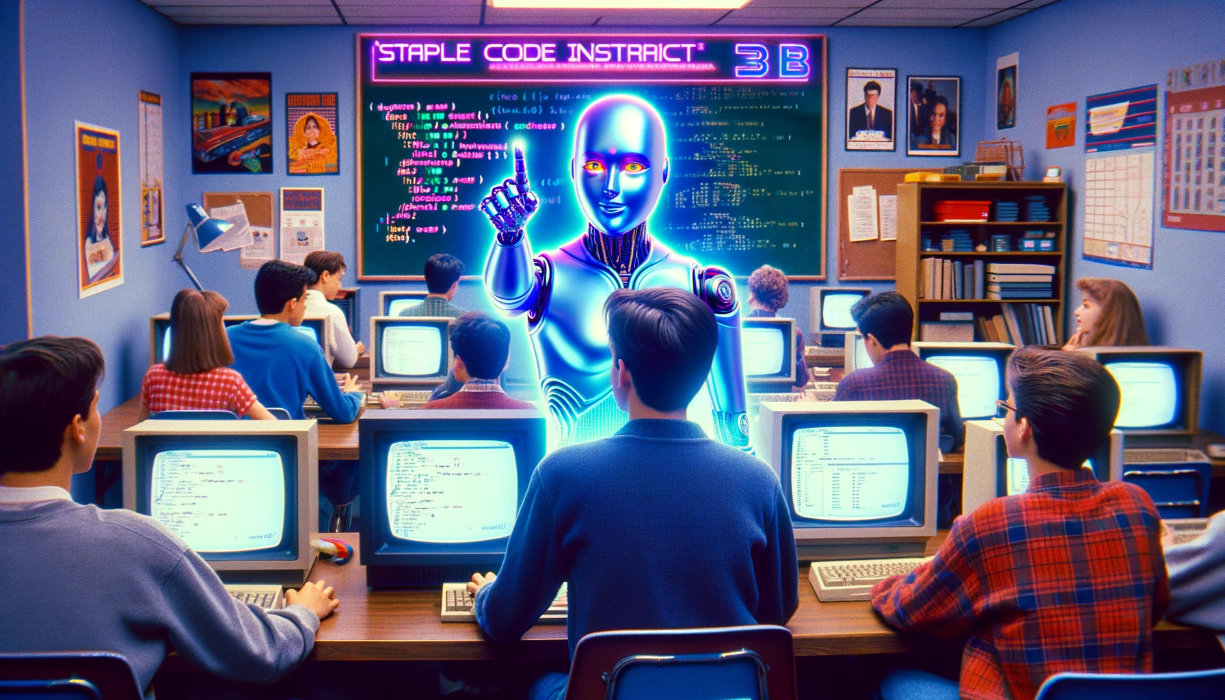
The integrated AI-Support helps with error analysis and code evaluation directly in the editor.
Lernende erhalten verständliches Feedback zu Programmierfehlern und Hinweise dazu, ob ihre Lösung die Aufgabenstellung vollständig erfüllt.
Teaching practice
Execution, output and security compactly bundled
CodeRoom unterstützt unterschiedliche Ausgabeformen und begrenzt die Ausführung technisch, damit Programmieraufgaben im Unterricht kontrolliert bearbeitet werden können.
Outputs
Console texts, graphics, tables, images and generated files can be displayed directly in the learning environment.
Controlled Execution
Time limits and technical restrictions reduce problems caused by infinite loops or unwanted access.
School framework
The environment remains browser-based, clear and well-controllable for typical classroom scenarios.
Ready for the next step?
Start with CodeRoom in a simpler computer science class
Browser-based, clear and directly usable for schools.